fork/oculante
git clone https://git.julia.blue/fork/oculante
b47bf97
master
files
| .cargo/ | |
| .github/ | |
| benches/ | |
| egui-modal-diag/ | |
| res/ | |
| src/ | |
| tests/ | |
| .gitignore | 150 B |
| CHANGELOG.md | 17.0 KiB |
| CODE_OF_CONDUCT.md | 5.1 KiB |
| Cargo.lock | 241.4 KiB |
| Cargo.toml | 4.4 KiB |
| Cross.toml | 1.6 KiB |
| LICENSE | 1.0 KiB |
| PKGBUILD | 1.1 KiB |
| README.md | 11.4 KiB |
| build.rs | 4.9 KiB |
| build_deps_linux.sh | 256 B |
| build_deps_win.bat | 227 B |
| build_mac.sh | 4.0 KiB |
| build_netbsd.sh | 43 B |
| create_release.sh | 1018 B |
| icon.ico | 170.4 KiB |
| setup_ext_libs.sh | 426 B |
| winres.rc | 17 B |
A no-nonsense hardware-accelerated image viewer
<img src="res/download.svg" height="50">
Oculante's vision is to be a fast, unobtrusive, portable image viewer with a wide range of supported image formats while also offering image analysis and basic editing tools.
Oculante is a free, open-source, bloat-free, and privacy-respecting image viewer that is fast to start up and open images. It is available on Windows, Mac, Linux, FreeBSD, and NetBSD, and supports a wide range of image formats. Oculante caches images for faster reloading and can correctly display unassociated channels. It also includes features for basic image analysis, and offers SIMD-accelerated, basic nondestructive editing tools such as cropping, resizing, painting, rotating, blurring, and more!




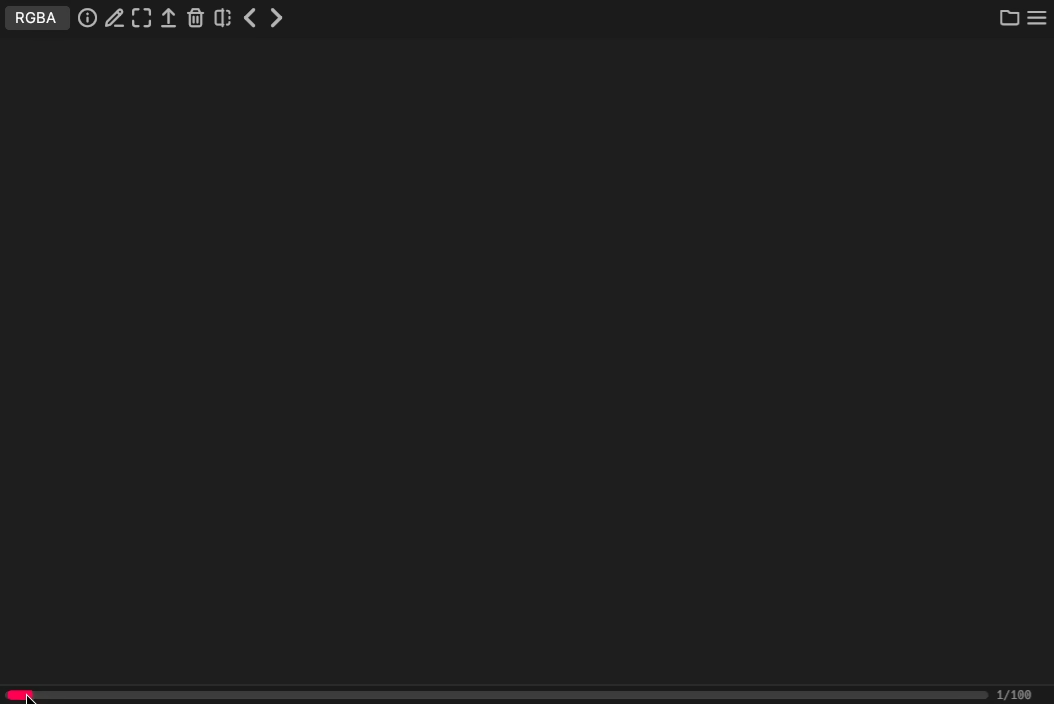
Flipbook
With configurable caching, Oculante can quickly step through image sequences:
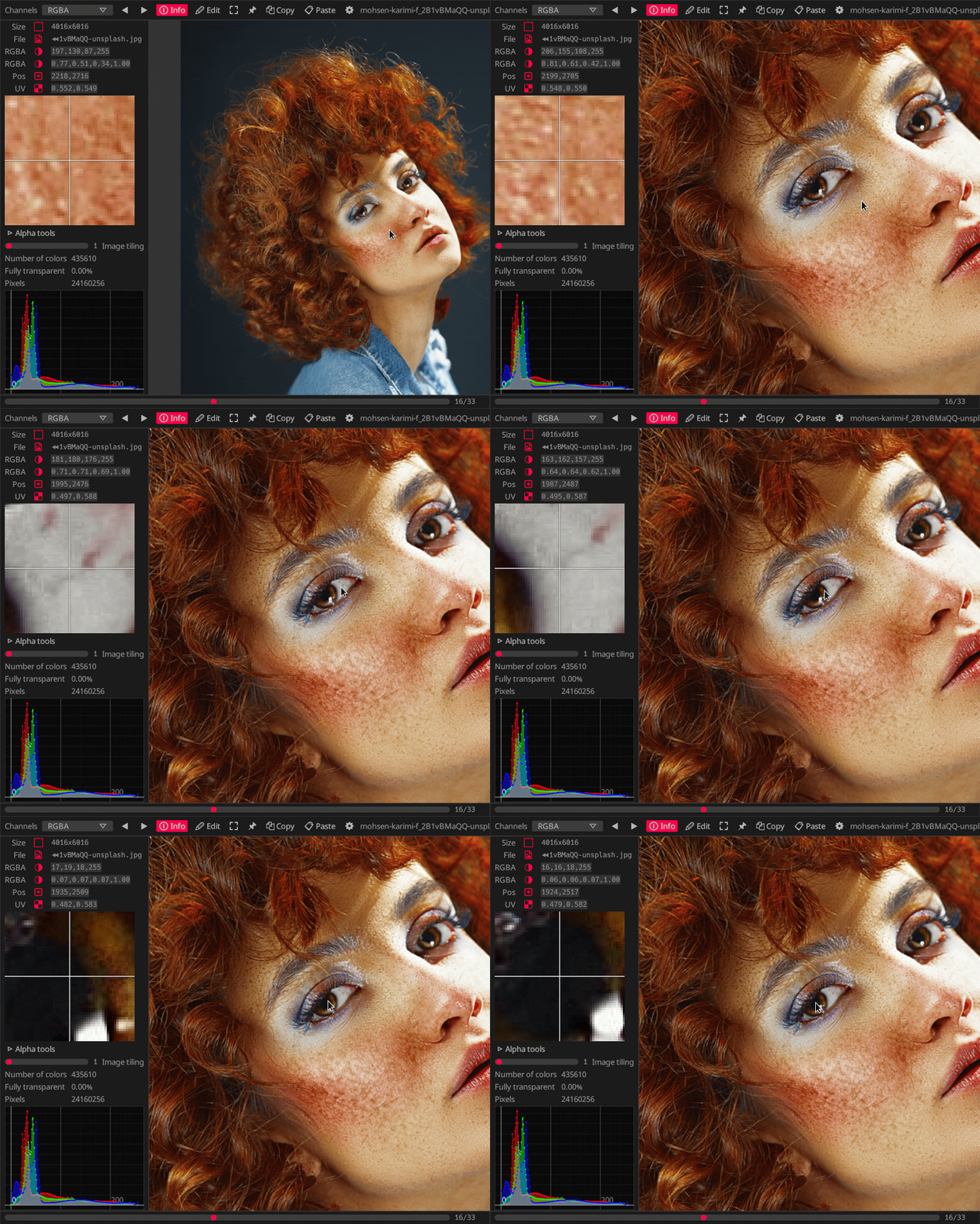
Inspection
Get information about pixel values and position, with precise picking:
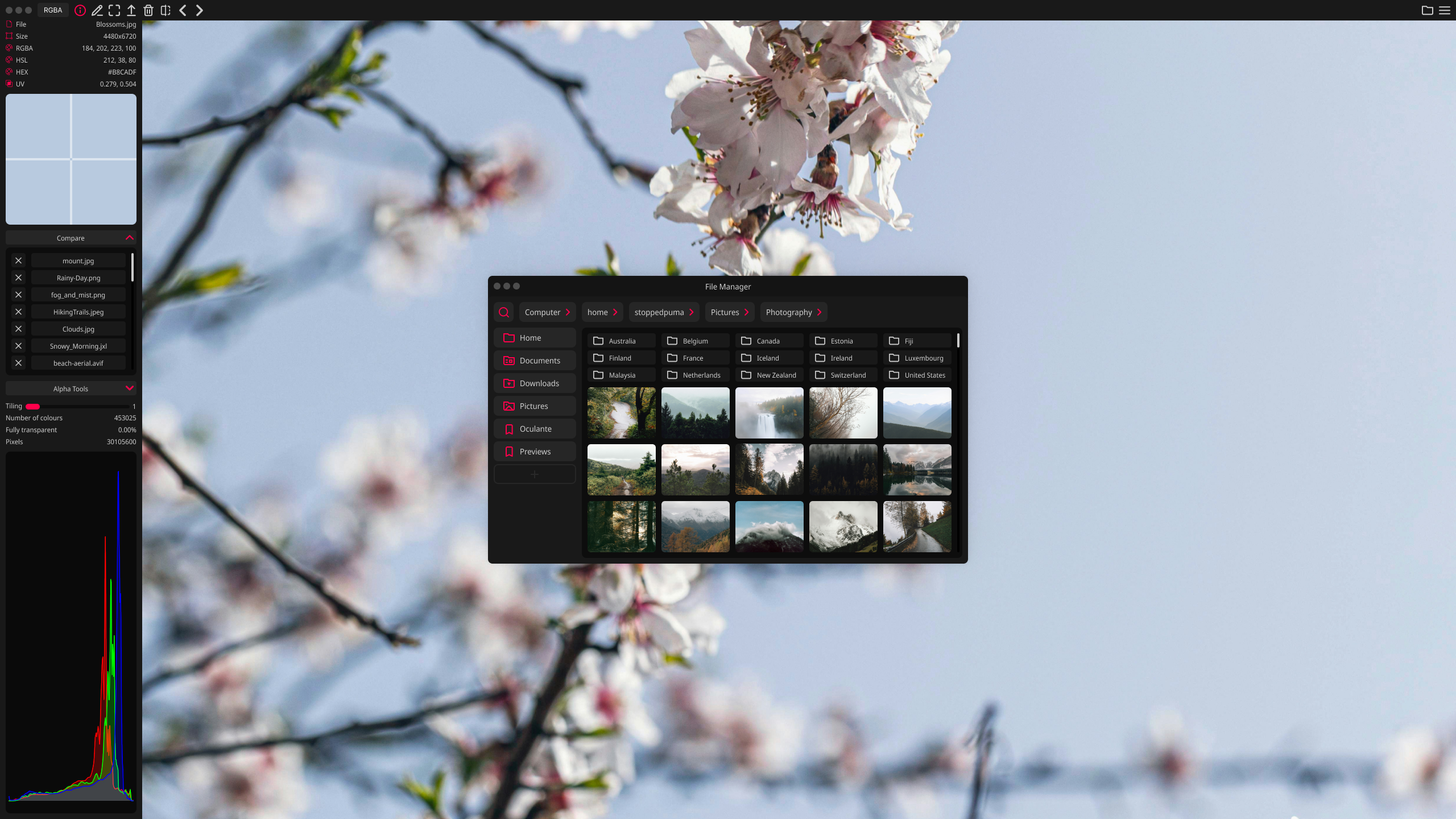
File Management
Oculante's built-in File Manager allows you to access files on your system without leaving the application. This makes it easy to compare images, especially with the dedicated compare option that lets you flip between images while preserving the zoom level and position.
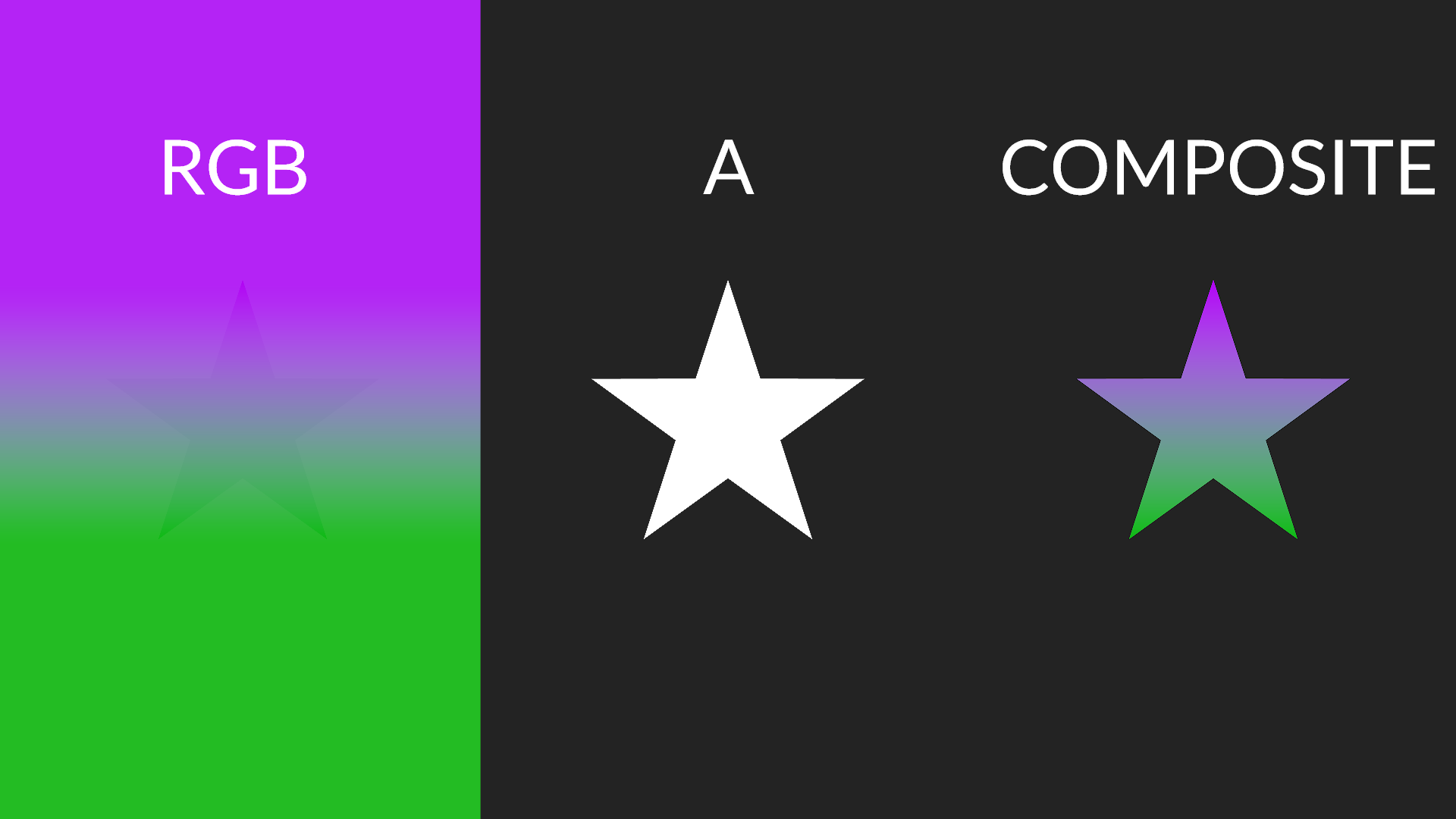
Correct color channel display:
Images may contain color information that is masked by the alpha channel. Although it is present you will not see it since usually RGB values are multiplied with the A channel when displayed. Oculante allows you to inspect all channels individually and see color data without transparency applied.
Installation
Find and download the correct executable for your operating system on the releases page. The download is small, around 25MB, as we link dependencies statically by default. We also have packages available for ARM Linux. Have a different OS? Please feel free to open an issue if you want your operating system of choice supported!
For those looking to manage Oculante through a package manager, please see the options below.
Cargo
cargo install oculante
Linux
- Arch Linux
pacman -S oculante
paru -S oculante-git
- NixOS
environment.systemPackages = [pkgs.oculante ] ;
- openSUSE
zypper install oculante
- Flatpak
flatpak install flathub io.github.woelper.Oculante
BSD
- FreeBSD
pkg install oculante
- NetBSD
pkgin install oculante
NetBSD builds currently use glsl-to-spirv instead of shaderc
Windows
- Scoop
scoop install extras/oculante
Build Dependencies
Linux (Debian):
sudo apt-get install libxcb-shape0-dev libxcb-xfixes0-dev libgtk-3-dev libasound2-dev nasm cmake
Windows: Install Nasm from https://www.nasm.us/pub/nasm/releasebuilds/2.15.05/win64/
Mac:
brew install nasm cmake
Updates
Oculante only gets updated when it improves something for you. You'll still see new releases about every month or two! To stay up to date you can use the update button in settings, or download the new release executable. Updates are also managed through your package manager if you installed through one.
Uninstalling
To uninstall Oculante, simply delete the executable file and the data folder. You can find the data folder in the relevant location for your operating system below.
- Windows:
~/AppData/Local/.oculante - Mac:
~/Library/Application Support/oculante - Linux & BSD:
~/.local/share/oculante
Roadmap
You can see what we're currently working on in our Release Plan, or our Milestones!
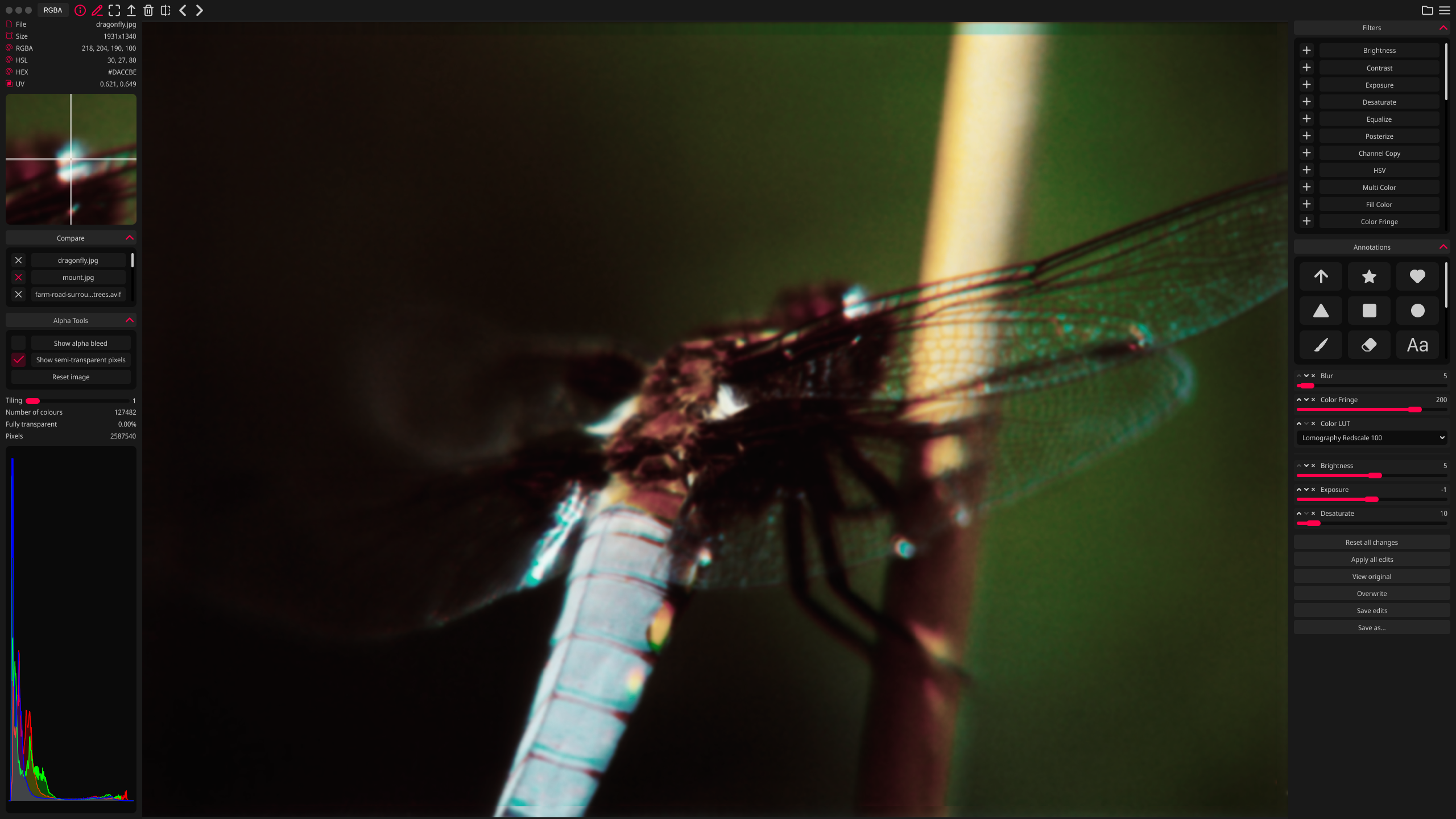
Features
- Image info: pixel position, color info, color histogram.
- Non-destructive editing, painting, and operator stack.
- Lossless JPEG editing: Crop, rotate, mirror without recompressing data.
- Built-in File Manager: Bookmark directories, favorite and manage files.
- Image tools: Image comparison, Measuring tools, Color pallete generation.
- User Interface: Dark/Light/System Themes, Zen Mode, Always on Top, Position/Scrub Bar, Fit image to view.
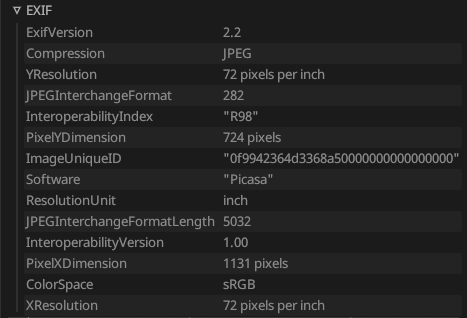
- Metadata and Metafile support: Load EXIF data and save metafile edit stacks.
- Focused on Performance: Threaded image loading, configurable image caching, Low cpu usage, pretty fast startup / loading time.
- Color Channel support: Display individual RGBA channels, unassociated / unpremultiplied alpha.
- Network listen mode: Start with
oculante -l portand oculante will switch to receive mode, listening on that port. - Load files from stdin: pipe your data with
cat image | oculante -s.
Image format support
- bmp
- gif (animation support and correct timing)
- hdr, tonemapped
- ico
- icns (via
rust-icns) - jpeg
- jpeg2000 (via
jpeg2k, feature "j2k", on by default) - png
- pnm
- tga
- jxl (JPEG XL, via
jxl-oxide) - avif
- tiff (via
tiffwith additional float/half support) - webp (via
libwebp-sys-imagehad very limited format support) - farbfeld
- DDS (DXT1-5, via
dds-rs) - DICOM (via dicom-rs) - Some metadata supported, too.
- psd (via
psd) - svg (via
resvg) - exr (via
exr-rs), tonemapped - RAW (via
quickraw- nef, cr2, dng, mos, erf, raf, arw, 3fr, ari, srf, sr2, braw, r3d, nrw, raw). Since raw is a complex field without true standards, not all camera models are supported. - ppm
- HEIC/HEIF (via
libheif-rs). Enabled on Windows builds, but optional dependency on MacOS and Linux - available behindheifflag. - qoi
- kra (Krita files)
Misc examples:
Viewing EXIF data
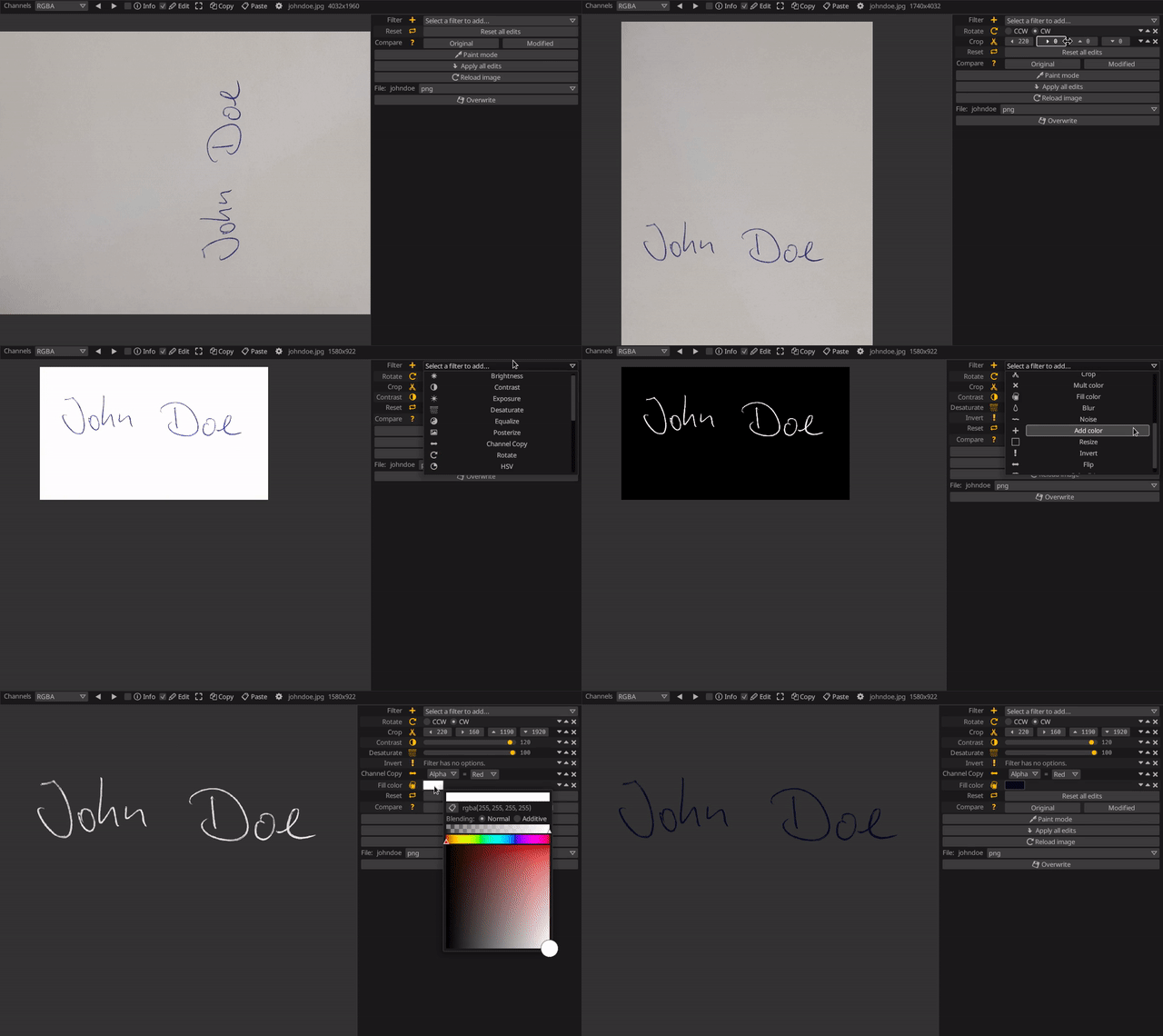
Extracting a signature
Credits
Photos used in tests and screenshots:
https://unsplash.com/@mohsen_karimi
https://unsplash.com/@frstvisuals
https://unsplash.com/@eberhardgross
UI Design:
Privacy pledge
Oculante does in no way collect or send anonymous or non-anonynmous user data or statistics. Oculante is and will remain free and open-source. There will never be ads. There are only two instances where oculante interacts with the network, and both never happen without being triggered by the user:
- Updating the application (must be triggered manually from settings)
- Listening for incoming images on a custom port (must be set on command line)
In addition, Oculante saves some settings locally, for example:
- UI accent color
- Keybindings
- Vsync preferences
- Whether the directory index bar is displayed
- Recent files
License
This project is MIT licensed, but some parts such as the LUTs in res/LUT are under the GPL license. As a result, we're making our entire source code public. If you would like to use Oculante without publishing your source code, please remove any GPL-licensed components and their references.
Extras
<details> <summary>Cargo Features</summary>-
turbo(on by default), the turbojpeg library will not be used to open jpeg images. You won't need Nasm to be installed. -
file_openwill enable/disable a OS-native file open dialog. This pulls in additional dependencies and is enabled by default. Disabling it will enable a custom file dialog. This will probably the default in the future. -
notan/glsl-to-spirv(on by default) uses the spirv shader compiler -
notan/shadercuses shaderc as a shader compiler. Longer build time. -
update(on by default) enable app updating. -
heifHEIF format support. -
avif_native(on by default) Rust AVIF decoder. -
dav1dTried and tested AVIF decoder, takes priority overavif_nativeif both are enabled. -
jxlcms(on by default) Required for complete JXL support. -
j2k(on by default) Support for jpeg2000.
Oculante can support some additional languages such as Arabic, Chinese, Japanese, Korean. This support depends on if your system has a supported font family installed. One supported font family is Noto Sans.
Simplified Chinese
- Heiti SC
- Songti SC
- Noto Sans CJK SC
- Noto Sans SC
- WenQuanYi Zen Hei
- SimSun
- Noto Sans SC
- PingFang SC
- Source Han Sans CN
Traditional Chinese
- Source Han Sans HK
Japanese
- Noto Sans JP
- Noto Sans CJK JP
- Source Han Sans JP
- MS Gothic
Korean
- Source Han Sans KR
Taiwanese
- Source Han Sans TW
Arabic
- Noto Sans Arabic
- Amiri
- Lateef
- Al Tarikh
- Segoe UI
Shortcuts:
mouse wheel = zoom
left mouse,middle mouse = pan
ctrl + mouse wheel = prev/next image in folder
Right mouse pick color from image (in paint mode)
<kbd>T</kbd> = AlwaysOnTop
<kbd>F</kbd> = Fullscreen
<kbd>I</kbd> = InfoMode
<kbd>E</kbd> = EditMode
<kbd>Right</kbd> = NextImage
<kbd>Home</kbd> = FirstImage
<kbd>End</kbd> = LastImage
<kbd>Left</kbd> = PreviousImage
<kbd>R</kbd> = RedChannel
<kbd>G</kbd> = GreenChannel
<kbd>B</kbd> = BlueChannel
<kbd>A</kbd> = AlphaChannel
<kbd>U</kbd> = RGBChannel
<kbd>C</kbd> = RGBAChannel
<kbd>V</kbd> = ResetView
<kbd>Minus</kbd> = ZoomOut
<kbd>Equals</kbd> = ZoomIn
<kbd>Key1</kbd> = ZoomActualSize
<kbd>Key2</kbd> = ZoomDouble
<kbd>Key3</kbd> = ZoomThree
<kbd>Key4</kbd> = ZoomFour
<kbd>Key5</kbd> = ZoomFive
<kbd>LShift</kbd> + <kbd>C</kbd> = CompareNext
<kbd>LShift</kbd> + <kbd>Left</kbd> = PanLeft
<kbd>LShift</kbd> + <kbd>Right</kbd> = PanRight
<kbd>LShift</kbd> + <kbd>Up</kbd> = PanUp
<kbd>LShift</kbd> + <kbd>Down</kbd> = PanDown
<kbd>Delete</kbd> = DeleteFile
<kbd>LShift</kbd> + <kbd>Delete</kbd> = ClearImage
<kbd>RBracket</kbd> = LosslessRotateRight
<kbd>LBracket</kbd> = LosslessRotateLeft
<kbd>LControl</kbd> + <kbd>C</kbd> = Copy
<kbd>LControl</kbd> + <kbd>V</kbd> = Paste
<kbd>LControl</kbd> + <kbd>O</kbd> = Browse
<kbd>Q</kbd> = Quit
<kbd>Z</kbd> = ZenMode
</details>